 CampSavvy
 Planning a Trip
Line up your stops, see the route on a map, and know the miles, drive time and fuel before you leave (Pro).
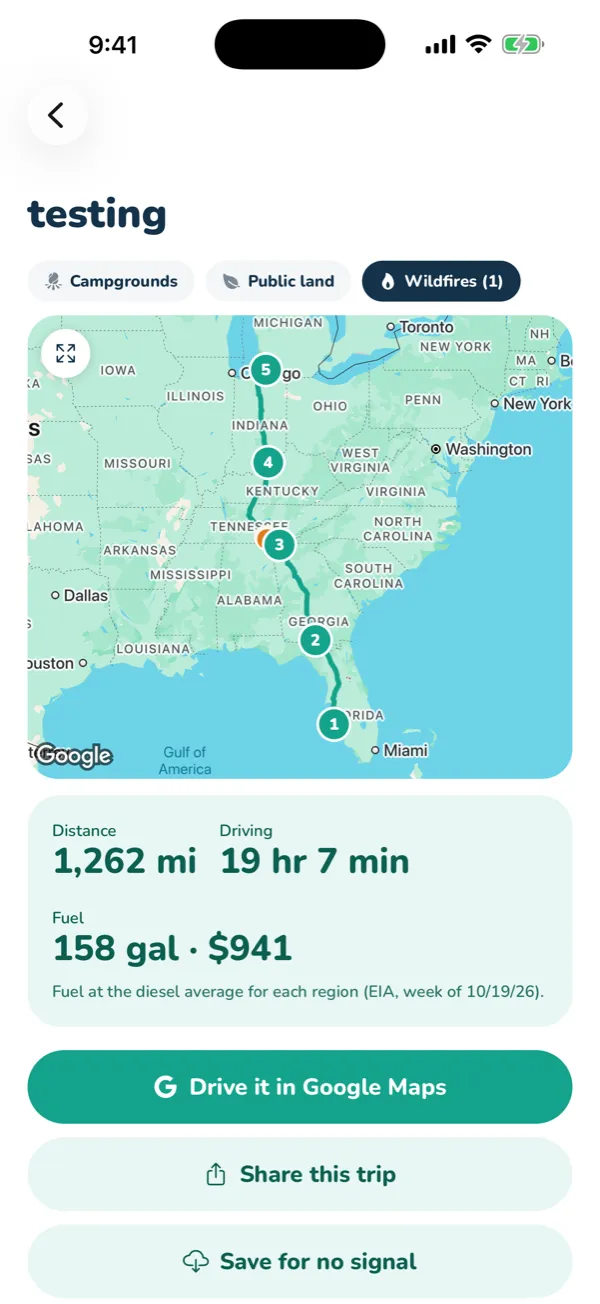
Start a trip
- Tap Trips on Home or at the top of the Camps tab, then New trip, and give it a name.
- Add stops in the order you'll drive them:
- Type in Add a stop and tap +. A stop can be a town or ZIP, a full street address (like 123 Main St, Moab, UT), or a place by name — a store, dealer, attraction or landmark (like Camping World Ocala). Names are searched near your last stop. Or
- Find a campground right on the trip's map — see Campgrounds on the trip map below.
- Reorder with the up and down arrows; Remove takes a stop out.
- Use + and − on a stop to set how many nights you'll stay.
Campgrounds on the trip map
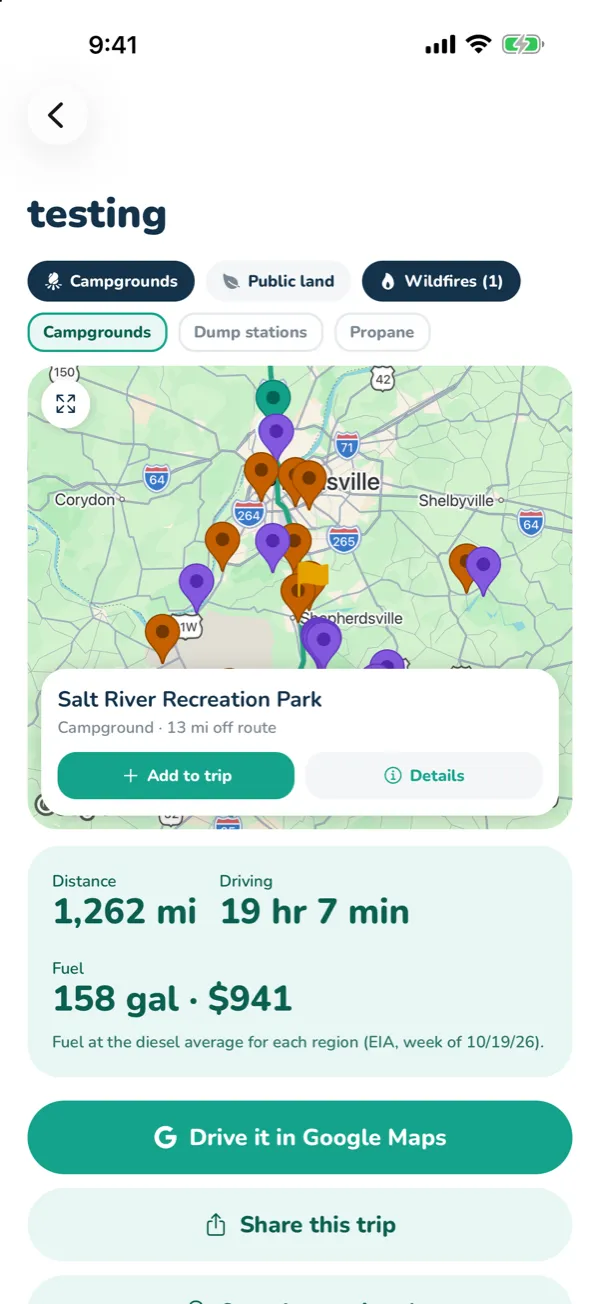
- Tap Campgrounds above the trip's map. Zoom in where you'd like to stay and tap Search this area — or turn on a day's drive (below) and tap the yellow flag to search where that day ends.
- Choose Campgrounds, Dump stations and Propane under the map buttons.
- Tap a pin. A card shows the park's type, how far it is off your route ("on your route" or "4 mi off route", as the crow flies) and the longest rig it takes.
- Add to trip puts it in where it adds the fewest miles — between the right two stops, not just at the end — and the route redraws. Details opens its phone, website, booking link and reviews.
Tap the expand button in the map's corner to plan on a full-screen map; in full screen that corner button shows the whole trip again, and X closes it. Moved the map? Search this area looks again where you are.
Miles, time and fuel
The totals card shows the whole trip's Distance, Driving time, Fuel (gallons and cost) and Nights. Between each stop you see that leg's miles, time, gallons and cost.
- Fuel needs your MPG and fuel tank size in Settings → Your rig.
- Fuel cost uses the government's weekly average gas or diesel price for each region (EIA).
- A leg longer than about 85% of a tank says Plan a fuel stop.
Which vehicle you're driving
On the trip, Driving picks what this trip is driven with — your rig, or another vehicle you've saved (the truck with a different trailer, a second RV, the car). Fuel type, MPG and tank size come from it, so gallons, fuel cost and fuel stops match. Switching between gas and diesel re-prices the trip on its own.
Add and edit vehicles in Settings → Your vehicles (or + Add a vehicle on the trip): a name, what it is, fuel, MPG and tank — plus height, loaded weight and length, which are saved for RV-safe routes. Your rig's leveler, checklists and maintenance stay with your rig.
When you'll get there, and the weather
Under the totals, set Leaving (or tap Today) and I drive about … mi a day. Each stop then shows Arrive about with the day you'll get there — nights you stay add days, and so does driving more than your daily miles — plus that day's National Weather Service forecast once it's within 7 days. Active weather alerts at a stop (like a winter storm warning) show in red.
Maintenance due before you get back
A purple card lists what on your service schedule comes due during the trip:
- Due now — already due; get it done before you leave.
- By miles (motorhomes driven on the trip) — the trip's road miles are added to your odometer to show where it comes due, like "Due at 34,000 mi — about 192 mi past Valdosta".
- By date — with a leave date set, anything that comes due while you're out, and the stop you'll be near.
Tap one to open it. Keep your mileage up to date on the Service tab so the miles are right.
Wind for tall rigs
CampSavvy checks the National Weather Service forecast along the road about every 50 miles — on the day you'll drive each stretch when the trip has a leave date, otherwise the next two days. For an RV or truck and trailer it warns when gusts reach 30 mph or wind 20 mph (High wind at gusts of 40 or wind of 25), and everyone sees official wind, dust and blizzard alerts. Tap a line to see where it is on the map.
Share the trip
Tap Share this trip to send family or friends a private link. It opens a page with the route on a map, your stops and dates, and each campground's phone, website and directions — never your costs, budget or vehicle. It always shows the trip as it is now, so they see your changes. Stop sharing turns the link off for everyone. Sharing needs you signed in.
Show my arrivals (under the share button) lets the page show when you arrive at and leave each stop — "Arrived at Silver Creek RV Park, Mon 10:26 PM" — so family knows you made it. It never shows where you are in between. It works with CampSavvy closed and your phone locked (location set to Always); with no signal, the check-in is sent when you get it back. Turning it off, or stopping sharing, deletes the check-ins. iPhone only for now — Android gets it in an update.
Arrival & departure reminders
iPhone only for now — Android gets them in an update. Turn on Arrival & departure reminders in the trip's setup card. When you pull into a stop, your phone says "You're at Big Texan RV Ranch — start your Arrival & Setup checklist?"; when you leave a place you've been at a while, it reminds you to run your Departure checklist. Tap the notification to open the list.
It needs location set to Always (so it works with CampSavvy closed). The phone watches a small circle around each stop — light on battery — and your location never leaves your phone. iPhones can watch up to 20 stops at a time.
How far you get in a day
Tap ◎ … mi on a stop to draw a circle of your daily miles around it on the map, with a yellow flag where that many miles of driving along your route ends. Tap the flag (or Campgrounds near the end of the day on the map) to see parks there. To search somewhere else, press and hold the flag, then drag it — parks show up around wherever you drop it. Tap Hide day to hide it.
Wildfires
CampSavvy checks the National Interagency Fire Center's active fires against your route. Fires within 25 miles get a red card with their size, how contained they are and how far from the route; tap one to see it on the map. Wildfires above the map shows or hides the fire outlines.
Steep grades
The steep grades card lists long climbs and downhills on your route — about 4% or more for 1.5 miles or longer — with how steep and how long, and which leg and mile they're on. Each one is marked on the map with an orange arrow. Tap a grade to zoom to it. Grades come from elevation data, which reads a little gentler than road signs, so treat a "5%" as possibly 6%. Tunnels and big bridges are smoothed out so they don't show as fake climbs.
Public land
Turn on Public land above the map to color in BLM, Forest Service, National Park, Fish & Wildlife, tribal, military and state land — handy for finding boondocking areas. A key shows what each color means. Always check the land agency's rules for camping there.
Trip expenses
Open Trip expenses to set a Budget and log what you spend — Fuel, Campground, Food or Other, with an optional note. It totals each kind, shows how much of your budget is left (or over), and shows the trip's fuel estimate next to what you really spent. Expenses sync with the computer planner.
Stop details and directions
- Tap a campground's name on the trip (or Phone, website & more) to open its page — phone, website, booking link and more.
- Tap Directions under any stop for turn-by-turn from where you are. On iPhone, pick Apple Maps or Google Maps.
Save for no signal
Before you head somewhere remote, tap Save for no signal. CampSavvy keeps each campground's phone, website and booking link and the latest forecast on your phone, so you can still call ahead or open a park's page with no service. Your trip itself is always on the phone. For maps and turn-by-turn, also download offline areas in Google Maps.
Drive it in Google Maps
Tap Drive it in Google Maps to load every stop, in order, as one route in Google Maps for turn-by-turn navigation. Choose to start from your first stop or from where you are now. Google Maps takes 11 stops at a time, so a longer trip opens in parts (stops 1–11, 11–21, …).